
Josef's document editor
Use Josef's Word editor to generate letters or agreements by simply uploading your existing .docx Word document template. Once uploaded, it is transformed into an editable template in which builders can insert variables, apply rules and even connect to DocuSign.
How to create a document
To create a document
- Create a message
- Choose either an Internal or External document message type
- Connect the message
- Edit the document
1. Create a message
Automated documents are hosted in bot messages, so first you'll need to determine what message text you want to be delivered to the end-user once the document has been generated.
If it's an Internal document, an example would be, Thank you, we'll be in touch with your document.
If it's an External document, an example would be Thanks! Here's your document.

[Image: an External document message ready to be created. Once created, the builder will then be able to upload their document]
2. Choose the message type
There are two document message types.
- External document
- End-users are able to download external documents via the bot UI. The documents can either be PDFs or Word files.
- Internal document
- Internal documents, on the other hand, are not accessible to the user via the bot UI. Instead, they are only accessible via the Activity tab in the Dashboard or available to end-users via a Notification.
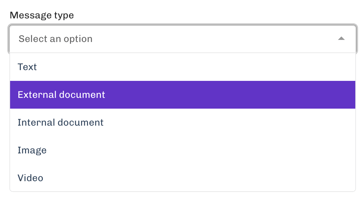
[Image: a user selecting External document which will mean the document is accessible to the end-user upon submitting their interaction.
3. Connect the message
Once the document message is configured, you'll then connect it to the rest of the flow as you would for a normal message.
4. Edit the document
Use the Word editor to upload your Microsoft Word template.
--
Got a question? Contact us at support@joseflegal.com.