
Introduction to Josef Q's Microsoft Teams integration
With the Josef Q Teams integration, you can:
- Ask questions to Josef Q tools and receive answers in Teams
- Engage with the Ask page experience directly in Teams
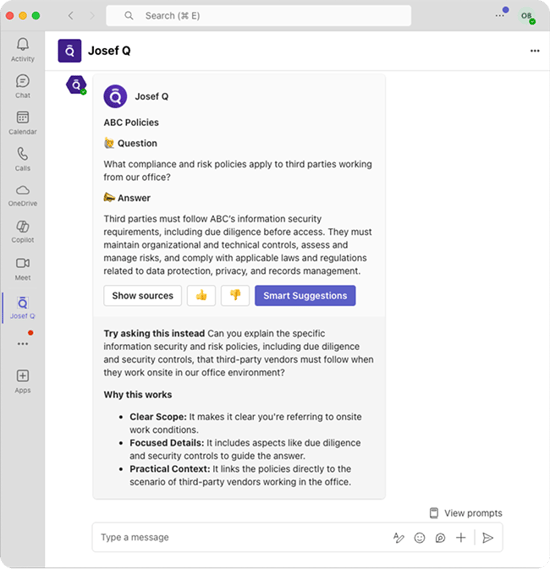
Please follow the steps below to install Josef Q to your Teams environment.
Add Josef Q to your Microsoft Teams environment
This section should be completed by your Microsoft Teams admin.
First, head to the Microsoft Teams Store (AppSource) and search for 'Josef Q' to install Josef Q to your Teams environment. Follow the prompts to install Josef Q.
Please share your Teams tenant ID with your Josef account manager. This is required to enable the integration. You can find the Teams tenant ID by simply copying and sharing your Teams link with us.
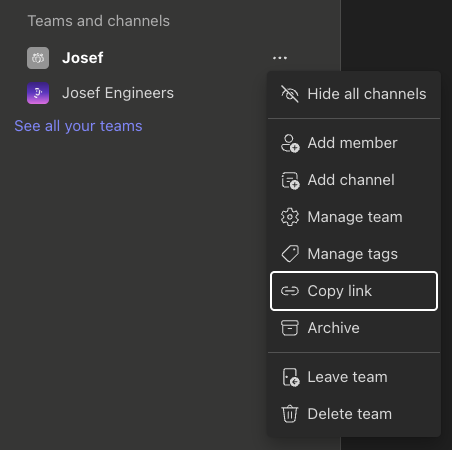
Once the Josef team connects your integration, users can start interacting with the Josef Q Teams Bot.
Ask a question to your tool in Teams
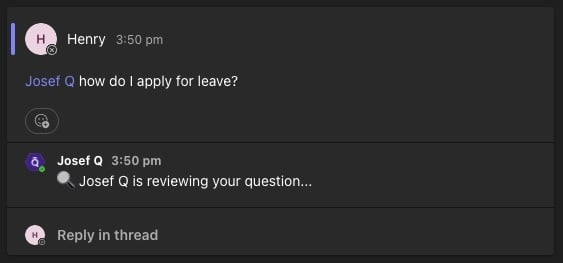
With the Josef Q Teams Bot, simply ask a question directly to the bot and Josef Q will respond! Josef Q's Teams Bot will identify the most relevant published tool in your organisation to ask it your question and return an answer.
Connect & disconnect a tool from your Teams Bot
Josef Q Teams Bot is automatically connected to tools published in your organisation. If you want to disconnect a tool, you need to unpublish the tool in Josef Q.
If you have further configuration needs, please reach out to your Josef account manager for help.
Additional Teams functionality and FAQs
In Teams you will also be able to:
- access answer sources
- review smart suggestions
- provide user feedback on answers
If you have any other questions or feedback, you can contact us at support@joseflegal.com.