
This article will teach you how to update your SharePoint-based tools.
Pre-requisite
- Create a SharePoint-based tool.
- Make sure your connected SharePoint folder has a maximum of 30 .DOCX /PDF files to be updated in your knowledge base.
Update your SharePoint-based tool
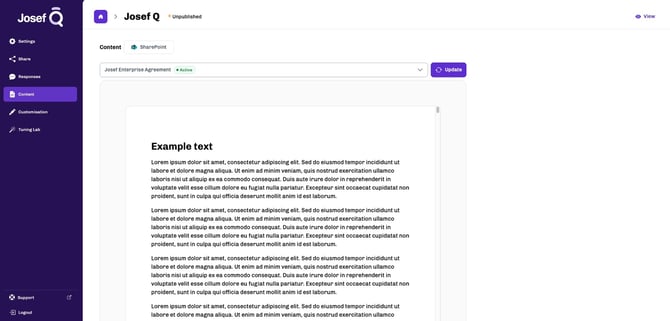
Step 1: Navigate to your tool's Content tab
In order to update your tool, simply head to the Josef Q Dashboard and select the tool you want to update. Then, open the Content tab.
Step 2: Initiate and complete the update wizard
Use the Update button beside the drop-down list of documents to initiate your SharePoint update wizard:
- Your tool will check if there are any updated .DOCX or PDF files in the SharePoint folder connected with your tool.
- If there are any new updates*, you will be directed to unpublish your tool and deactivate impacted answers (if applicable).
- Your tool will enter a processing state which could take up to 10 minutes, depending on the size of your files.
- After the update, training set response(s) will be made inactive for you to review in the Training tab if:
- more relevant sources are found for a training set question; or
- previously relevant sources for a training set question has been removed from the knowledge base.
- If there are any new updates*, you will be directed to unpublish your tool and deactivate impacted answers (if applicable).
-
- If there are no new changes, you will be notified in-app that there are no new changes and your tool is up-to-date!
*new updates are recognized as: files added, files removed, and files modified (including changing the name of the file).
Please note your SharePoint folder should have a maximum of 30 files (.DOCX or PDF), under 20MB each.
Step 3: Review and test your tool
After the update, you will be able to review the list of documents in the drop-down list in the Content tab. You may need to review any impacted answers in the Training tab before publishing your tool.
You can View your tool and ask it questions to get answers based off of the latest content.