
It's simple to update your tool with your latest content.
This article will teach you how to update your knowledge base using files from your local device (i.e. files stored on your laptop).
If you want to sync your tool with files from SharePoint, check out our Update SharePoint article.
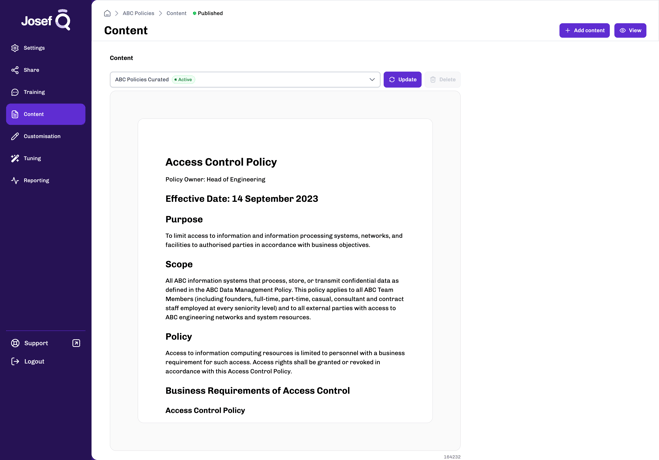
Within your Josef Q tools, you have the option to:
- add new files
- update existing files
- delete existing files
First, in your Josef Q Dashboard, select the tool you want to configure and head to the Content tab. Then, follow the steps below depending on the action you're looking to do:
Add a new file
Step 1
In the top-right-hand corner of your tool, click the Add content button.
Step 2
Follow the prompts to add a new document. Your tool will begin processing your new document.
After you've updated your knowledge base, all new questions asked will use the content from your latest knowledge base.
Update an existing file
Step 1
In the document drop-down selector, select the document you want to replace with a new one. Hit the 'Update' button to initiate the update wizard.
Step 2
Follow the prompts in the update wizard to upload a document to replace the one you selected in the drop-down in step 2. Review the prompts to apply your update!
After you've updated your knowledge base, all new questions asked will use the content from your latest knowledge base.
Delete an existing file
Step 1
Use the drop-down list of documents to select the document you wish to delete.
Step 2
Click the Delete button and follow the prompts to delete your document.
After you've updated your knowledge base, all new questions asked will use the content from your latest knowledge base.
Review your training set (if required)
If your tool has an existing training set, Josef Q will check if any of your training set responses may need updating based off of your latest knowledge base update. Josef Q will move your training set response(s) into the inactive tab for you to review if:
- more relevant sources have been found for a training set question; or
- a source used by a training set question has been removed from your knowledge base
You will be able to review and and update your impacted training set in the Training tab in the following ways:
- Update responses individually: For any responses you know that should change based off of the knowledge base update, you can use the 'Edit' button in the Inactive tab to open the training response modal and update the response. You can repeat this step for other responses as needed.
- Bulk reactivate training set: For responses you know that won't be impacted by the knowledge base update, you can use the Reactivate button in the Training tab to reactivate your entire inactive set. Simply click the Reactivate button and follow the prompts.
Josef Q will use the responses you have previously approved and the latest sources from your knowledge base to form your training set.