
Update your training set
In this article, we'll show you how to keep your training set up-to-date. Maintaining an accurate and current training set empowers your tool to deliver better responses.
Step 1. Update knowledge base
You can learn how to update your knowledge base in our article: Update tools with new content or here if your tool is connected to SharePoint.
Step 2. Review and activate past moderated responses
Once you’ve updated your knowledge base, you’ll need to review your tool’s inactive responses to decide if they should be included in your training set.
Here’s how to review inactive responses.
Update responses individually
For responses you know that should change based off of the knowledge base update, you can update them individually in the Training tab:
- To review your tool’s responses, select Training from the tool’s Dashboard. This will display all your all inactive responses.
- Use the Edit button to review the training response.
- In the training response pop-up, the training answer and new answer generated from your new, updated content will appear on the left-hand side (see image below).
- You can either click Save to confirm the original response is still accurate; or
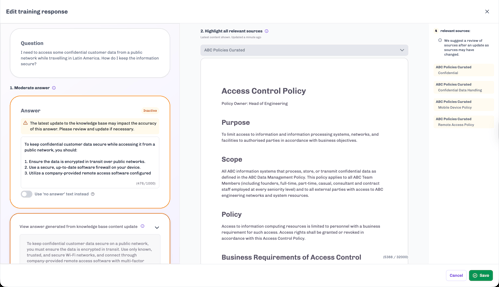
- You can either click Save to confirm the original response is still accurate; or
-
- Click Copy to answer so that future answers draw from the answer generated by the content update.
- Note: Creators can also moderate the answer further and amend sources here, too.
- Click Copy to answer so that future answers draw from the answer generated by the content update.
- Once you’re done, click Save.
- Repeat the steps above to review all of your tool’s inactive answers.
Reactivate all inactive training set responses at once
For responses you know that won't be impacted by the knowledge base update, you can use the Reactivate button in the Training tab to reactivate all inactive training set responses. Simply click the Reactivate button and follow the prompts.
Josef Q will use the responses you have previously approved and the latest sources from your knowledge base to reactivate each training set response.
NB: If you don’t review and approve inactive responses, they will remain in the inactive tab of your training set. In the meantime, you can still publish your tool, but those responses will not be used in your training set until you reactivate them.