
Users can access tools either via
- Unique URLs shared by creators
- Embedded iFrames generated in Dashboard > Share > Code snippet. These can be featured on sites such as an organisation’s internal intranet, for example.
- Integrations with Microsoft Teams, or Slack.
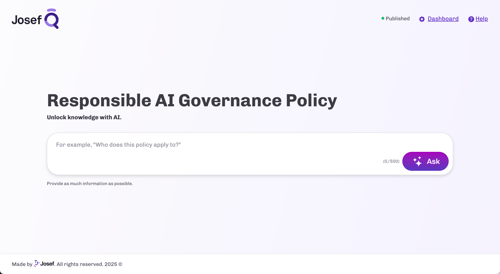
Examples of embedded experiences
You can embed Josef Q tools in your systems using Josef's code snippet. Most platforms have a method to embed iframes or links which you can find in their Help Centre documentation. We've provided a couple of common examples below:
Embed tools in SharePoint Sites
You can embed tools to SharePoint Sites.- First, update your SharePoint Site to allow iframes from q.joseflegal.com to be embedded. You may need a SharePoint admin to help you configure these settings.
- In your SharePoint Site, use SharePoint's embed function to insert your Josef Q code snippet (located in your Josef Q Share tab). You can adjust the size of the iframe to fit your needs.
Add tools to your Okta Dashboard
You can add tools to your Okta End-User Dashboard. You may need an Okta admin to help you configure this for your users.
- Identify the tool URLs (e.g. https://q.joseflegal.com/ask/7a2e88a8-63fa-4115-a127-62c06b801123/josef) you wish to make accessible in your Okta End-User Dashboard.
- Request an Okta admin in your organisation to add your tools as Bookmark Apps in the Okta End-User Dashboard. Here are step-by-step instructions to create a Bookmark App for each of your tools.
- Make sure you provide your Okta admin a group of users who should be able to view the Bookmark App.
- Your users will be able to access your Q tools in the Okta End-User Dashboard after your Okta admin creates the Bookmark App and assigned users to them.
Enable Single-Sign-On (SSO) access for tools
SSO can be enabled for your tools. This is optional. Learn more here!